Browse » Home »
Posts filed under Google
Intresting Google Facts [infographics]
G
00gle which is my Teacher (GURU). It's very intellegent more than me. When i write my half sentence of serach information, Google makes it complete. It's just work like charm. I post some tricks about Google when you searching some stuff on Google which are below- Facebook also wants to be like google
- Gmail Drive
- Search like Expert With Google
- Evolution of Search "G00gle"
Google Search Marry Chirstmas
F
irst of all wish you a Marry Christmas. Do you notice this month's Google search view? let's have a look of Google search. You can search any thing on Google, If you are expert to Googling. When i search something on Google that time someone ask me that what are you doing my answers is "Googling". My previous post "Search like an expert with Google" about search with Google like expert.Today, Just type "Christmas" you can see this below search results. In this image you can see line of balloons which line you can only see when you type "Christmas".
China's Online Search Traffic Market of October
C
hinese internet services and security software provider Qihoo 360 (NYSE: QIHU) saw its share of China's online search market, both in terms of page views (PV) and unique visits (UV), increase to almost 10% during the month of October, according to Alibaba Group's third-party web analytics subsidiary CNZZ. In September, Qihoo 360 held approximately 7.3% and 7.4% of the market by PVs and UVs, respectively. Baidu's share dropped from roughly 75% by both PV and UV in September to 73.0% by PV and 73.5% by UV in October. Google also lost share during the month, down from 5.1% and 5.2% by PV and UV, respectively, in September to 4.7% and 4.6% in October.New market share reports from Marbridge Consulting puts Google in forth place in terms of search market share. Google trails Baidu, Qihoo 360, and Sogou with only 4.72% share in China. Baidu has 72.97%, Qihoo 360 has 9.64% and Sogou has 7.83%.
Here is the search market share report from Marbridge Consulting:
Google Doodle Celebrates 'Dracula' Author Bram Stoker's Birthday
K
eeping up with the spooky theme after the much appreciated Halloween Doodle, Google has come up with a new Doodle celebrating Irish novelist Bram Stoker’s 165th birthday. Born on November 8, 1847 in Clontarf, Ireland, Stoker is known for his most famous novel – ‘Dracula’As vampires are associated with blood, the letters that make up Google appear in red, creating an eerie scene. Also featured is Dracula wearing his black long coat with bare fangs, the castle and the famous crescent moon with a bat flying complete the picture.
Other characters of Bram Stoker’s novels also appear in the black and white doodle.
The legendary author has his name credited with a dozen novels and a few collections of short stories.
Dracula was his fifth novel that was published in 1897, which he wrote after spending years researching European folklore and mythological stories of vampires.
He died in London in 1912 after suffering a number of strokes.
Halloween may be over, but Thursday’s Google Doodle wouldn’t be out of place on Oct. 31.
The bloodsucker is depicted on the doodle’s right-hand side in all his fanged glory. Dracula was published in 1897.
What do you think of Google’s latest doodle? Let us know in the comments below
Free SMS service launched by Google in Gmail
T
he popular search engine company paid service Gmail and Google Apps gugulani free service by Google Free SMS service for people who enjoy mananaram also been received. Gmail users can now chat window on a mobile phone can send Free esaemaemasa. To use this feature, it must include mobile contacts Gmail address book. Gmail chat window, then any user can send any number of free SMS. With this, the number of SMS sent directly from the chat window can be found in the reply SMS. However, Google has not given the facility of official information, but many users have the option to be found in the chat window.- Contact list will keep phone number
This is for the user to their friends, relatives - relatives will keep the phone number of the contact list. Using the chat window they going to be able to send SMS on the mobile number.
- The work of this new facility
50 SMS credits will be given to all users. There was an SMS from one of the credit will be used, even if the user's account five credit credit against the reply will be, if you are 50 SMS a reply was made, and even if you do not have to worry jarrra. Again will refill your account within 24 hours. This facility is a cellular operator with taiapa in arambhava Google. The revenue will be generated by the company. Google Chat Help portal stated that the number on your reply message, and then it can get the credit by five. You can also get it in multiple reply giving more credit.
- These companies serve
The service currently operates in eight cellular Aircel, Idea, loop mobile ematiesa, Reliance, Tata DOCOMO, Tata Indicom and Vodafone, BSNL, MTNL and Airtel has been received in some circle. You will be mobile on the SMS will be reply in the chat window when it appears. The reply to the SMS charge wearer takes its normal billing plan.
Blogger pageview statistics hiccup
Today's Morning, My blogger stats pageviews reverted to zero(0)
Blogger pageview statistics hiccup
Google
We've received many reports about missing pageview counts on Blogger stats, and we're working to resolve this problem as quickly as possible. Thanks for bearing with us -- we apologize for the inconvenience this issue has caused
Google's product forums for Blogger are filled with similar reports from users complaining that their statistics have been completely reset..
Facebook wants to be like Google

Facebook wants to be like Google
F
acebook is reportedly overhauling its search functionality to compete with Google, a move that could intensify rivalry between the two web giants even further. Reports tell us that about 24 Facebook developers. Led by ex-Google engineer Lars Rasmussen, are working on new search engine module. The engine is likely to allow users to more easily browse Facebook status updates, notes, images and videos. Facebook aims to keep its users from jumping off its social network to use Google's search engine for browsing other information.At this point, you're probably wondering that if Facebook is trying to focus primarily on giving users more access to content already available on its site, how it is competition to the God of Search Engines. Here's how: its being speculated that the social network plans to sell keyword ads, very much like Google and Bing do. It's going to be a rough ride for Facebook tough, seeing how it has to ensure optimum privacy settings of users, as it can only integrate those results that a user has set for public viewing.
Gmail Drive
VERDICT: A tiny utility to easily use your Gmail account as online storage.
FOR: Easy to imlement and use; data retrivable almost everywhere.
AGAINST: None.
Specifications
| System Requirements | |
| Operating system:Windows 2000 or Higher;Disk Space: 1 MB | |
| CONTACT | Viksoe.dk |
| PHONE | NA |
| NA | |
Ratings
| Features | 4/5 |
| Performance | 4/5 |
| Ease of use | 5/5 |
| Overall Rating | 4.5/5 |
| Value for money | 5/5 |
G
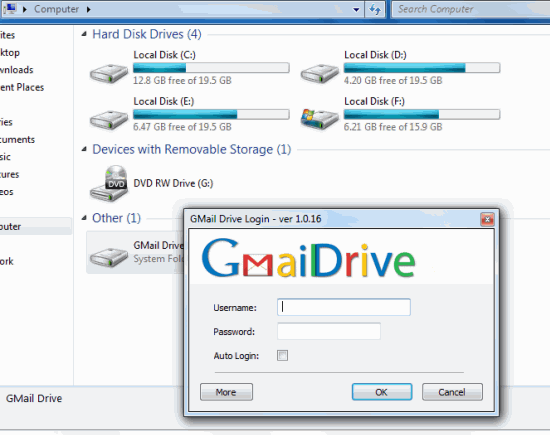
mail drive is a simple Shell Namespace Extension that creates a virtual file system around an existing Gmail account, It basically creates a virtual drive located in My computer that's linked to your Gmail account (which you have to specify). you can copy/paste or drag-n-drop files into the drive directly. Your files are then stored in your Gmail account and you can access it from anywhere. It allows you to store a maximum of 10 GB; the storage will depend on the space you have left in your Gmail account. However, If you are using Gmail Drive with e-mail client configured with the same Gmail account and have the client configured to delete e-mails after retrieval, the Gmail Drive is flushed. We recommend you create new Gmail account to associate with Gmail Drive. This Will also benefit you with a complete 10 GB of space.Search like an Expert with google !!!!!!
I
f you’re like me, you probably use Google many times a day. But, chances are, unless you are a technology geek, you probably still use Google in its simplest form. If your current use of Google is limited to typing a few words in, and changing your query until you find what you’re looking for, then I’m here to tell you that there’s a better way – and it’s not hard to learn. On the other hand, if you are a technology geek, and can use Google like the best of them already, then I suggest you bookmark this article of Google search tips. You’ll then have the tips on hand when you are ready to pull your hair out in frustration when watching a neophyte repeatedly type in basic queries in a desperate attempt to find something - Explicit Phrase :
Lets say that you are looking for some article regarding only about social networks, then instead of typing just computer softwares in the Google search box, try enclosing it in double quotes like "computer softwares" and search it.
Example : "computer softwares"
- Exclude Words :
This thing can be useful when you don't want a specific search in your results. Lets say that you want to search for computer softwares but you don't want any result related to antivirus programs. Simply use the "-" sign before the term that you want to exclude.
Example : computer softwares - antivirus
- Site Specific Search :
Often, you want to search a specific keyword in some specific site. Even if the site doesn’t support a built-in search feature, you can use Google to search the site for your term. To achieve this simply use the "site:somesite.com" modifier.
Example : "avast" site:http://www.cracksoftware.net
- Similar Words and Synonyms :
Let’s say you want to include a word in your search, but want to include results that contain similar words or synonyms of that particular words. To do this, use the "~" in front of the word.
Example : "internet marketing" ~professional
- Specific Document Types :
If you’re looking to find results that are of a specific type, you can use the modifier "filetype:". For example, you might want to find only PowerPoint presentations related to internet marketing, then you can use the following type of term in your search.
Example : "Social Media" filetype:ppt
- This OR That :
By default, when you do a search, Google will include all the terms specified in the search. If you are looking for any one of one or more terms to match, then you can use the OR operator. By doing this Google will search either this or that.Note: The OR has to be capitalized
Example : social media OR internet tricks
- Phone Listing :
Let’s say someone calls you on your mobile number and you don’t know who it is. If all you have is a phone number, you can look it up on Google using the phonebook feature.
Example : phonebook:617-555-1212note: the provided number does not work – you’ll have to use a real number to get any results.
- Calculator :
The next time you need to do a quick calculation, instead of bringing up the Calculator even when you are using the internet will be a bad idea as you can just type your expression in to Google to get quick results.
Example : 32547 * 5.16
- Word Definitions :
If you need to quickly look up the definition of a word or phrase, then simply use the "define:" command instead of getting up and searching for your dictionary.
Example : define : softwares
- Time of any place in the world :
If you want to know the current local time of any place or city in the world then you need to simply do this.
Example : time Ahmedabad (this will show the local time in Ahmedabad)
- Calculator:
The next time you need to do a quick calculation, instead of bringing up the Calculator applet, you can just type your expression in to Google.
Example: 48512 * 1.02
- Word Definitions:
If you need to quickly look up the definition of a word or phrase, simply use the "define:" command.
Example: define:plethora
How to add "Add me on Google +" widget for blogger
Facebook, Twitter, flicker, orkut etc are using for social networking but now a days Google developed Google + in social network.
If you already have Google+ Plus account, and if you're kind of wondering How to Make "Add Me on Google+ Plus" Widget "Add to Circles" in Blogger Google. Well, then this post will show you how to do that. Anyway, as you've known that by putting the widget allows you to show the visitors of your blog or website that you have a Google+ account. Therefore its a great opportunity to get in touch with your visitors and to increasing your friends to add you in circles.
Well, here's how to add "Add Me on Google+ Plus" widget on Blogger Sidebar:
Then The widget looks like something this!!!!
If you already have Google+ Plus account, and if you're kind of wondering How to Make "Add Me on Google+ Plus" Widget "Add to Circles" in Blogger Google. Well, then this post will show you how to do that. Anyway, as you've known that by putting the widget allows you to show the visitors of your blog or website that you have a Google+ account. Therefore its a great opportunity to get in touch with your visitors and to increasing your friends to add you in circles.
How to add "Add me on Google +" widget for blogger
Well, here's how to add "Add Me on Google+ Plus" widget on Blogger Sidebar:
- Firstly, you need to visit your Google Plus profile page. Then take a look at the URL in your browser address bar. It looks like this:https://plus.google.com/106124274181440071950/posts
- The red marked is Google+ ID, now you should copy this!
- Now Go to Widgetplus.com then click Get Widget button.
- Then you paste the Google+ ID you've copied, looks like this. In this part you can customization.
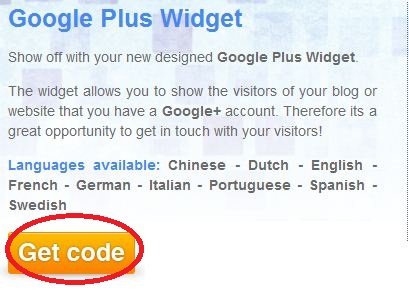
- After that you click the orange "Get Code" button, and copy that HTML code.
- Now, you login to Blogger > go to Design > Page Elements and click an "Add A Gadget", then Select HTML/Javascript.
- Just paste the code you've copied to the HTML box and save it. Enjoy!
Then The widget looks like something this!!!!
Inside GoOgLe – A Collection of Strange Links on Google
Although Google is a search engine,it’s also a website.It has millions of it’s own pages indexed in it.When i was digging deep inside Google i found some strange links inside it.So I decided to compile a list of strange Google links. Enjoy!
Oops there’s still lot more.But only this much for now….
- If you ever wondered all the misspellings of Britney Spears and their volume, you must check this out.
http://www.google.com/jobs/britney.html
- These two links are to fun Google games
http://www.google.com/Easter/feature_easter.html
http://www.google.com/heart/heart01.html
- Quench your thirst for knowledge with Google Gulp
http://www.google.com/googlegulp/
- Check out Google’s latest ideas
http://www.google.com/experimental/
- If you are fond of puzzles
http://www.google.com/puzzles/
- Tribute to Moms
http://www.google.com/moms01/
- Google Mobile maps
http://www.google.com/mobile/gmm/index.html
- http://www.google.com/tofc/
- Are you scary smart?
http://www.google.com/scarysmart/
- Google press center
http://www.google.com/press/
- Google apps
http://www.google.com/a/help/intl/en/var_0.html
- Mind-racing problems.
http://www.google.com/indiacodejam/
- Doodle 4 Google
http://www.google.com/doodle4google/
- The virgle
http://www.google.com/virgle/
- Google Alerts
http://www.google.com/alerts
- Urchin Software from Google
http://www.google.com/urchin/
- Google dictionary
http://www.google.com/translate_dict
- Inside google
http://www.google.com/plex/
- Movie reviews
http://www.google.com/reviews
- GOOGLE MARS
http://www.google.com/mars/
- GOOGLE SKY
http://www.google.com/sky/
- Google’s next Coding Competition site
http://www.google.com/codejam/
- http://www.google.com/pda
- http://www.google.com/m
- http://www.google.com/imode/
- http://www.google.com/jsky
- Blog search
http://www.google.com/blogsearch
- Microsoft on google
http://www.google.com/microsoft
- GOOGLE MOON
http://www.google.com/moon/
- Google Linux
http://www.google.com/linux
- http://www.google.com/ie
- Google tour
http://www.google.com/tour/services/
- Google TOS
http://www.google.com/accounts/TOS
- Google trends
http://www.google.com/trends/hottrends
- Google arts
http://www.google.com/Top/Arts/
- Google 3d warehouse
http://www.google.com/sketchup/3dwh/
- Google Adult content
http://www.google.com/Top/Adult/
- Google & Dilbert Doodle
http://www.google.com/dilbert.html
- Google in Kannada
http://www.google.com/intl/kn/
- Google strange logos
http://www.google.com/doodle8.html
http://www.google.com/doodle9.html
- Win Registry files in google
http://www.google.com/google_rsearch.reg
- Google Universities Search
http://www.google.com/options/universities.html
Oops there’s still lot more.But only this much for now….
How To Add Google Buzz Share Count Button
Add Google Buzz Share Button
- Go to Layout >Edit HTML in your Blogger Dashboard.
- Back up your existing Template before making any changes!
- Make sure to check the "Expand Widget Templates" box.
- Here is the Google Buzz it With Share Count Code:
<div style="float:right;padding:4px;"> <script type='text/javascript'> njuice_buzz_url = '<data:post.title/>'; njuice_buzz_title = '<data:post.url/>'; njuice_buzz_share = 'reader'; </script> <script type='text/javascript' src='http://button.njuice.com/buzz.js'/> </div>
- Place the Google Buzz it with Share Count Code either directly after this:
<div class='post-header-line-1'/>
ORDirectly before this:
<data:post.body/>
- Now save your template and you're done!
How To Add Google Buzz Share Button
Add Google Buzz Share Button

- Go to Layout >Edit HTML in your Blogger Dashboard.
- Back up your existing Template before making any changes!
- Make sure to check the "Expand Widget Templates" box.
- Here is the Google Buzz it Code:
<div style="float:right;padding:4px;">
<a expr:href='"http://www.google.com/reader/link?url=" + data:post.url + "&title=" + data:post.title + "&srcTitle=" + data:blog.title+ "&srcURL=" + data:blog.homepageUrl ' rel='nofolloW' style='text-decoration:none;' target='_blank'>
<img alt='Buzz It' src='http://i48.tinypic.com/idyc04.png' style='border:0px;'/></a>
</div>
<a expr:href='"http://www.google.com/reader/link?url=" + data:post.url + "&title=" + data:post.title + "&srcTitle=" + data:blog.title+ "&srcURL=" + data:blog.homepageUrl ' rel='nofolloW' style='text-decoration:none;' target='_blank'>
<img alt='Buzz It' src='http://i48.tinypic.com/idyc04.png' style='border:0px;'/></a>
</div>
- Search for this line of code in your template:
<div class='post-header-line-1'/>
- and place the Google Buzz it Code right after the code you searched for above.
If this doesn't work, then search for this code below and place the Google Buzz it Code directly before it.
<data:post.body/>
- Now save your template and you're done!
How To Add / Submit Google Translator Widget To Blogger
Hai Blogger, talking about Blogging tips.. today we'll learn how to add google translator widget to you blogger that allow everyone arround the world understand the content of your blog. it goods for your blog when you want to get much bigger traffic visior arround the world. Anyway, the google translator widget will gonna look like this.
Let you know how to do this thing :
If You Like This Article Then Take a 5 minutes and Share this Article....
Follow Us And Enjoy More Tricks Tips And Tutorials....
Let you know how to do this thing :
- Login to Blogger account
- Click Design / Layout
- Click Page Eelement
- Click add A Gatget and Choose HTML/Javascript
- Now, Copy And Paste below Code Into It.
<script src="http://www.gmodules.com/ig/ifr?url=http://www.google.com/ig/modules/translatemypage.xml&up_source_language=en&w=160&h=60&title=&border=&output=js"></script><noscript><a href="http://www.cutehearthacker.blogspot.com/">Grab This</a><br />
- Now, Save HTML/Javascript and You Have Done It Chearsssssssssss!!!!!!!!!!
If You Like This Article Then Take a 5 minutes and Share this Article....
Follow Us And Enjoy More Tricks Tips And Tutorials....
Add Google +1(Plus one) Button in blogger
Google has recently released Google Plus one button, Some people says it Google +1 button, It is almost working like Facebook like button,Both of them are working same as friends are recommending them, The main difference between Google +1 button and Facebook like button ,Digg button ,twitter button , LinkedIn button can only below or above post wherever you put it, and Google +1 button is showing in Google Search Result page in Google Search below Result of your blog or website.
You can show Google Plus one button below each post by going to
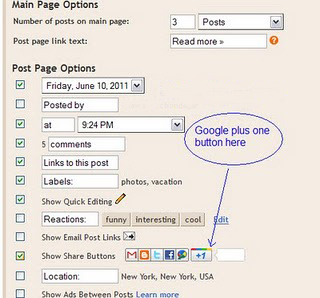
Blogger dashboard > Design > Page elements >here select the edit button under blog post element,
You will be redirected to a page in a new windows, here tick mark the show share button and and save , now refresh your blog post and you will see the change without any coding.
However if you do not like to put the sharing button below post and you wish to add a floating Google plus one button in your blogger post, you can also add it simply by adding Javascript in to your blogger blog.
GO to your Blogger Dashboard > Design > Edit HTML and backup your blogger template first so that if you do not like the change, you can revert it back by uploading previously back up template.
Search for the following code by pressing CTRL + F.
Now if you wish to add Google +1 button before starting your content and below post tittle , you can put the following coding before the code, and if you wish to show it below your posted content, you can paste the following coding after that code.
small
medium
tall
standard
Here we have given the size standard, you can find it in coding by pressing ctrl + F and search for size="standard"
If you do not wish to appear the count in Google +1 button, you may change the attribute true or false in count attributes.
You can show Google Plus one button below each post by going to
Blogger dashboard > Design > Page elements >here select the edit button under blog post element,
You will be redirected to a page in a new windows, here tick mark the show share button and and save , now refresh your blog post and you will see the change without any coding.
However if you do not like to put the sharing button below post and you wish to add a floating Google plus one button in your blogger post, you can also add it simply by adding Javascript in to your blogger blog.
GO to your Blogger Dashboard > Design > Edit HTML and backup your blogger template first so that if you do not like the change, you can revert it back by uploading previously back up template.
Search for the following code by pressing CTRL + F.
<data:post.body/>
Now if you wish to add Google +1 button before starting your content and below post tittle , you can put the following coding before the code, and if you wish to show it below your posted content, you can paste the following coding after that code.
<!-- Google +1 button Start -->
<b:if cond='data:blog.pageType != "static_page"'>
<p></p>
<div style='float:left;padding:10px;'>
<script type="text/javascript" src="http://apis.google.com/js/plusone.js"></script>
<g:plusone expr:href="data:post.url" size="standard" count="true"></g:plusone>
</div>
</b:if>
<!-- Google +1 button End -->
Now Just save the template, You may customize your Google plus 1 button size by following attributes.<b:if cond='data:blog.pageType != "static_page"'>
<p></p>
<div style='float:left;padding:10px;'>
<script type="text/javascript" src="http://apis.google.com/js/plusone.js"></script>
<g:plusone expr:href="data:post.url" size="standard" count="true"></g:plusone>
</div>
</b:if>
<!-- Google +1 button End -->
small
medium
tall
standard
Here we have given the size standard, you can find it in coding by pressing ctrl + F and search for size="standard"
If you do not wish to appear the count in Google +1 button, you may change the attribute true or false in count attributes.
Call any Landline, Mobile Phone anywhere from Gmail using Google Voice
Yes,now you can reach the people you care about from right inside Gmail.This service available to many more of you who use Gmail outside the U.S. by offering calling in 38 new languages around the world.Before this service only launched in US and Canada only.Now Google expands its Google Voice Project to reach more destinations.
There are no connection fees levied by Google, you just pay for what you talk. Google Voice Rates page also compares the call charges with leading Internet Telephony service ( Skype).
Calls to the U.S. or Canada placed within those countries will continue to be free at least for the rest of 2011. Calls to the U.S. or Canada placed from outside these countries will be charged $0.01per minute (or €0.01, £0.01, C$0.01 per minute). .
Credits can be added to your account to make the voice calls using Google voice.
How to enable Google Voice in Gmail outside US:
1.To get this service You need to download Voice and Video Plugin and restart browser after installation.Google Voice Call Charges:
Google voice rates are really cheap if you are using for calling outside your country. What I liked most is calling rates for US which is just 0.01 USD from anywhere in the world.There are no connection fees levied by Google, you just pay for what you talk. Google Voice Rates page also compares the call charges with leading Internet Telephony service ( Skype).
Calls to the U.S. or Canada placed within those countries will continue to be free at least for the rest of 2011. Calls to the U.S. or Canada placed from outside these countries will be charged $0.01per minute (or €0.01, £0.01, C$0.01 per minute). .
Credits can be added to your account to make the voice calls using Google voice.
Enable Google Voice in Google Apps:
If you’re a Google Apps user, your domain administrator must have Google Voice and Google Checkout enabled in the administrator control panel in order to be able to use this feature.Note:At the Time of Writing this post Google not yet open this service to certain countries but will open soon.