How To Troubleshoot Your System For Memory Problems In Windows 7

0 comments
W
indows 7 includes built-in features to help you identify and diagnose problems with memory.


If you suspect a computer has a memory problem that isn't being automatically detected, you can run the Windows Memory Diagnostics utility by completing the following steps:

  • Click Start, type mdsched.exe in the Search box, and then press Enter
  • Choose whether to restart the computer and run the tool immediately or schedule the tool to run at the next restart.
Windows Memory Diagnostics runs automatically after the computer restarts and performs a standard memory test automatically. If you want to perform fewer or more tests, press F1, use the Up and Down arrow keys to set the Test Mix as Basic, Standard, or Extended, and then press F10 to apply the desired settings and resume testing.

When testing is completed, the computer restarts automatically. You’ll see the test results when you log on.

Note that if a computer crashes because of failing memory, and Windows Memory Diagnostics detects this, the system will prompt you to schedule a memory test the next time the computer is restarted.

Windows 8 Down but not out in 2013

0 comments
W
indows 8's been in the news again, and not in a good way. Again.
Net Applications, the company that measures worldwide operating system penetration by watching 40,000 websites, distilling the results from 160,000 monthly unique visitors, and adjusting the numbers based on estimates of the number of computer users in each country, now estimates that 1.7 percent of the desktop/notebook/netbook computers accessing the Internet worldwide in December were using Windows 8. Of the Win8 users, per Net Applications, about 3 percent are using the touch interface -- or about 0.05 percent of all observed computers.

Windows 7's uptake -- using the same Net Applications measuring stick -- was around 21 percent at the same point in its lifetime, during December 2009. (Windows 8 hit general availability on Oct. 26, 2012; Windows 7 on Oct. 22, 2009.)

     Of course, the world was different three years ago. Windows buyers were eager to try anything not named "Vista," Windows XP owned about 56 percent of the OS pie, the iPad wasn't even a gleam in Best Buy's eye, and the various Mac OS versions just barely topped 5 percent. Three years later, Mac OS versions run over 7 percent and XP still runs on 40 percent of all observed computers.

     StatCounter, the other major horse in the OS counting race, tells a less "optimistic" tale, although its calculation methods are quite different: StatCounter counts hits on the pages it follows -- 15 billion hits per month -- and doesn't reduce them to unique PCs or adjust the numbers for geographical sampling anomalies. (Worth noting that both Net Applications and StatCounter wildly underreport Asian markets, which have seen unprecedented growth.) While Windows 8 hasn't yet made enough of an impact to emerge from the "Other" category, StatCounter puts Internet Explorer 10 use in the United States at just under 1 percent in December. Of course, IE10 is now available in beta for Windows 7, bugs and all, but it ships with Windows 8.

     Over on the retail side, Bloomberg's Naoko Fujimura quotes Fujitsu president Masami Yamamoto as saying that demand for Windows 8 is "weak," with demand in Europe particularly poor. Fujitsu has concommitantly lowered Windows computer sales projections for the first quarter of 2013.

     Just before Christmas, Emmanuel Fromont, president of Acer Americas, told the New York Times, "It's a slow start, there's no question."

     I've been watching online sales of Surface RT tablets at Microsoft Stores in the Unite States, Canada, Australia, U.K., France, and Germany, and at Staples and Best Buy in the U.S., as well as Suning in China, and Harvey Norman Australia. Not one of the online sites has ever shown an "Out of Stock" or "On Order" notification.

     A quick check of the major online ordering sites shows vast numbers of Windows 8-equipped notebooks for $500 or less, and many under $350. I don't see any listed as "Out of Stock." Even the newer, touch-enabled designs are widely and immediately available, with a few sporadic exceptions.

So much for the doom and gloom. Here are the silver linings.
     Michael Dell's keynote at the Dell World conference on Dec. 12 contained many glowing comments about Windows 8:

     With Windows 8 we're on the cusp of the next revolution in hardware and software... [I]n the customer conversations that we've been having, the interest in Windows 8 is quite high, even with commercial customers, who would normally wait a few releases to adopt the new versions. What we're seeing here is really an immediate need, because CIOs are worried about the ramifications of a BYOD world.

     Of course, Dell is sitting on a whole lot of Windows 8 computers.

     On a less cynical note, I have two reasons to think that Windows 8 may not turn out to be a complete crash-and-burn.

     First, the fat lady hasn't yet sung. Surface with Windows 8 is due out in January. Although it may not take the world by storm, Surface Win8 has an easy act to follow. All signs I've seen point to Surface RT going the way of the dodo in short order. A full-on Windows 8 machine with the svelte Surface form factor may have a chance, particularly because netbooks are about to disappear. (According to Business Insider, both Asus and Acer have discontinued manufacturing netbooks, effective Dec. 31.)

     Second, if the Net Applications figures represent anything close to reality, people accessing the Internet with Windows 8 machines are only using the touch interface 3 percent of the time. Clearly, Windows 8 customers aren't yet using the Mr Hyde Metro side of the product. If Microsoft can come up with a compelling reason for everyday consumers to actually use Metro -- yes, that's a big IF -- there's certainly a lot of room for increased sales. Coming up with an app that everybody wants is one whole heckuvalot easier than coming up with a new Windows, and it looks like very few people have even dipped their toes in the Metro gene pool.

This story, "Windows 8: Down but not out," was originally published at InfoWorld.com. Get the first word on what the important tech news really means with the InfoWorld Tech Watch blog.

The Size of Microsoft [ info-graphic ]

0 comments
How big is Microsoft?
T
he size of Microsoft can be determined in terms of the number of people employed in the company. For the fiscal year 2009, the company employs at least 93,000 in different countries. For the same year, Microsoft posted total revenue of $58.437 billion and an operating income of $20.363 billion. The net income posted by the firm is $14.569 billion and the total asset is $77.888 billion. The total equity is $19.558 billion.


Happy New Year 2013 Windows 7 Wallpapers

0 comments


A
collection of Happy New Year 2013  windows wallpaper. You decorate your home, your workplace and desktop for New Year, The changing of one year to the next can fill one with a sense of excitement and hope for the possibilities that await in the new year. Ring in the new year on your desktop with our New Year’s 2013 Wallpapers collection.
Related Posts

Note: Click on the picture to see the full-size image—these wallpapers vary in size so you may need to crop, stretch, or place them on a colored background in order to best match them to your screen’s resolution.


How to set new password without confirm password

1 comments
I
changed my Laptop("Sleepy Angel")'s password 48 hours ago after that i worked for 48 hours and my sleepy angel continuously wake up with me and i forgot password because that password i used first time so its happen. Now problem is that i want to set my old password without confirmation of password. I got its solution.

How to set new password without confirm password
  • Go to Run type lusrmgr.msc [Logon User Manager Microsoft Console] Hit Enter.
  • Now you will see this below window click on left side Users folder
  • Right click on user account name my account name is administrator and click on set password
  • After set password click on proceed.
  • Now set your password with out confirmation of old password


Asus launches Windows 8 touchscreen ultrabooks and hybrids in India

0 comments
A
sus has had a busy day today, with the launch of a whole host of products as a part of its Windows 8 lineup. Among them are two touchscreen ultrabooks, and two hybrid devices that can be used as full-fledged laptops as well as tablets.


              The two ultrabooks released by Asus are the VivoBook F202E and the VivoBook S400CA. The VivoBook F202E is priced at Rs. 39,999. The specifications for this one are as follows – Intel Core i3-3217M clocking at 1.8GHz, 4GB RAM, 500GB hard drive, Intel HD 4000 graphics, an 11.6-inch touchscreen display and Windows 8 Pro preloaded on the machine. The VivoBook S400CA is priced at Rs. 59,999 and is powered by an Intel Core i7-3517M clocking at 1.9GHz with 4GB of RAM. There is a 500GB hard drive for your storage requirements and the Intel HD 4000 chip handles the graphics. In a difference to its lesser-priced sibling, this version has a 14-inch touchscreen. Windows 8 Pro is what these machines come with preloaded.

              Then came the turn of the hybrid devices. The VivoTab TF600TG features a 10.1-inch Super IPS+ display and a quad core Nvidia Tegra 3 processor powers it. There is 2GB of RAM, and a 64GB flash storage. This version comes preloaded with Windows RT. Following on from the tradition set by the Transformer and the Transformer Prime, the keyboard dock will come with and additional battery as well as a host of ports for connecting external devices. The price of the VivoTab is Rs. 61,999.

              The notebook-tablet hybrid, the Taichi. The version that has been launched is the one with the Intel Core i7-3517U processor clocking at 1.9GHz and has 4GB of RAM. The Asus Taichi has 13.3-inch dual displays, back to front, with one keyboard. You can work on either of the displays when in keyboard more, including the mirroring option to replicate the same content on both. When closed, this works as a conventional tablet. The display has both pen as well as finger touch support. This comes with a 256GB Sandisk SSD, and Windows 8 Pro is preloaded on the machine. The price of the Asus Taichi is Rs. 1,39,999 and Asus claim that this will be available in the Indian markets from December 2012.

Originally Article From Digit

Opera 12.10 Released

0 comments
I
nternet addicts are using many different web browsers to surf fast internet on the web. Opera is one of the fastest and best web browser. More than 275 million people are using Opera as their web browser for surf fast internet access. Opera supports more than 40 languages and works with Windows, Mac, Linux.

“In addition to the new extensions, Opera 12.10 now lets web developers enrich a user's web experience even more. By introducing the Context API, web developers can let the context menu (what most people call the right-click menu) get extended usability for example, start a Tweet by right-clicking a link. The Resource Loader API lets web developers have their extensions interact with advanced CSS and JavaScript on webpage,” says Opera in a release.


Opera Software has always strived to develop the fastest and technologically most advanced browsers. As a result, the Opera browser is the choice of some of the world’s most demanding and knowledgeable users. At the same time, when the powerful compression technology in the full browser is applied to the Opera Mini browser, the Web is accessible on even the simplest handsets, with small screens and limited memory. This has made the Opera Mini browser the world’s most popular mobile browser.

Now Opera released their latest version of Opera 12.10 for all the users. This latest version consist better integration for both Windows, Mac PCs.

What's new in Opera 12.10

* And Opera 12.10 adds supports for wide array of new extensions such as facebook notification, twitter notification and much more.

* This new version supports Retina display on Mac PCs.

* Fully Supports with Microsoft's new product Windows 8.

The latest version of Opera will make your web access more fast and colorful. So why you are still waiting?

Click Here to Download Opera 12.10

Mastering The Windows XP Registry

0 comments

The Recovery Console

T
he Windows XP Recovery Console is a tool that allows recovery from a number of failures. Previously, all you could do was boot another copy of Windows XP and hack your way around,replacing files, even registry components, in the blind hope that you would somehow fix the problem. With Windows XP, you have two tools to use: the Recovery Console and the Safe Mode feature.

         The Recovery Console is a powerful, simple (no, that's not an oxymoron!) feature that is supplied with Windows XP, but it is not installed by default. The Windows XP Safe Mode works in the same manner as the Safe Mode found in other versions of Windows. You can modify a number of system settings using Safe Mode (such as video modes). Installing the Recovery Console after the system has failed is quite like locking the barn door after the horse has been stolen—it really won't work that well.

Installing the Recovery Console

          The Recovery Console must be installed before disaster strikes. It will be difficult (maybe even impossible) to install it after a disaster has reared its ugly head. So, let's install the Recovery Console right now. First, you must use the Windows XP distribution CD (or share containing the appropriate files, if installing from a network device). The Recovery Console is installed using the winnt32.exe program. The winnt32.exe program is the same program that is used to install Windows XP; however, by selecting the correct option, you are able to tell winnt32.exe to not install Windows XP, but to install the Recovery Console instead. Note It is not possible to install the Recovery Console at the same time as Windows XP. You must first install Windows XP, then install the Recovery Console. If you have multiple copies of Windows XP installed, it is only necessary to install the Recovery Console one time—the Recovery Console will work with as many copies of Windows XP as are installed.

Follow these steps to install the Recovery Console from the Windows XP distribution CD:
  • Insert the distribution CD and change into the i386 directory.
  • Run winnt32.exe using the /cmdcons option. Typically, no other options are needed, though some users may wish to specify source options, especially if installing from a network share rather than a hard drive.
  • The installation program contacts Microsoft to check for updates to this Windows XP component.

  • The winnt32.exe program opens the dialog box shown. This dialog box allows you to cancel the installation if you need to. Note that multiple installations of the Recovery Console will simply overwrite previous installations; in such cases, no error is generated.
  • If there are no errors, the dialog box shown in Figure 2.5 is displayed. The Recovery Console is ready for use at this point.


What's in the Recovery Console?

          The Recovery Console consists of a minor modification to the boot.ini file, and the addition of a hidden directory on the boot drive. The added directory's name is cmdcons. The change to the boot.ini file is simply the addition of another line providing for a new boot option:

C:\cmdcons\bootsect.dat="Microsoft Windows Recovery console" /cmdcons

          This option consists of a fully qualified file name (C:\cmdcons\bootsect.dat), a text description (Microsoft Windows Recovery Console), and a boot option (/cmdcons). As everyone should be well aware, the Windows XP Boot Manager is able to boot virtually any operating system (assuming that the operating system is compatible with the currently installed file system).

How Windows XP Supports Booting other Operating Systems

          Windows XP can be told to "boot" any directory or file location. For example, the Recovery Console is saved in the cmdcons directory. In the cmdcons directory is a 512-byte file named bootsect.dat. Windows XP will treat a file named bootsect.dat exactly as if it were a hard disk's boot sector. In fact, one could, theoretically, copy the bootsect.dat file to a drive's boot sector location and cause that operating system to be booted directly. One use for this technology is in a multiple-boot configuration where the other operating system or systems are not compatible with Windows NT (such as Windows 95/98/Me). The Recovery Console does qualify as an operating system, though it is very simple—and limited. A major question will always be this: is the Recovery Console secure? In most situations, the Recovery Console is actually quite secure. The user, at startup of the Recovery Console, is prompted for two pieces of information:
  • Which Windows XP installation is to be repaired (assuming that there is more than one Windows XP installation!).
  • The Administrator's password for that installation. The Recovery Console then uses the installation's SAM to validate this password to ensure the user has the necessary permission to use the system.
          A situation comes to mind: if the Administrator's password is lost or otherwise compromised, not only may it be impossible to use the Recovery Console, but anyone with access to the compromised password could modify the system with the Recovery Console. This is not really an issue, though. If the Administrator's password is lost, that's life. It will be difficult, if not impossible, to recover the password. If the security of the Administrator's password is compromised, then it will be necessary to repair the damage—changing the password is mandatory in this case. In either case, the Recovery Console is no less secure than Windows XP is. The cmdcons directory holds over 100 files.

Connect your Sky Drive using the new app

0 comments


Easily sync files to your SkyDrive account using the free tool.

S
ky Drive has certain limitations when accessing your online storage over the web interface or while connecting as a network drive in Windows Explorer. These limitations should now change with he new SkyDrive App offered by Microsoft for PCs and other platforms. Login through your existing SkyDrive account and follow the link 'Get SkyDrive Apps'. At first, you will find the button 'Get Apps' under 'SkyDrive for Windows' and then click on the 'Download' button. One should also follow the link 'Manage storage' in SkyDrive. This service offers new registrations 7 GB of free space. Once you have downloaded the SkyDrive app, enter your SkyDrive credentials when starting the app for the first time. Now, you can access SkyDrive through Windows Explorer.

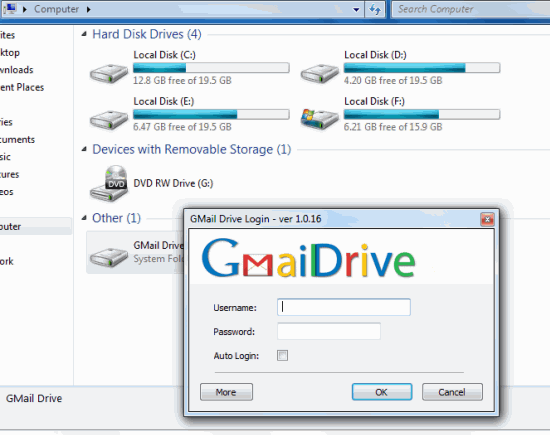
Gmail Drive

0 comments

VERDICT: A tiny utility to easily use your Gmail account as online storage.
FOR: Easy to imlement and use; data retrivable almost everywhere.
AGAINST: None.


Specifications
System Requirements
Operating system:Windows 2000 or Higher;Disk Space: 1 MB
CONTACT Viksoe.dk
PHONE NA
EMAIL NA

Ratings
Features 4/5
Performance 4/5
Ease of use 5/5
Overall Rating 4.5/5
Value for money 5/5

G
mail drive is a simple Shell Namespace Extension that creates a virtual file system around an existing Gmail account, It basically creates a virtual drive located in My computer that's linked to your Gmail account (which you have to specify). you can copy/paste or drag-n-drop files into the drive directly. Your  files are then stored in your Gmail account and you can access it from anywhere. It allows you to store a maximum of 10 GB; the storage will depend on the space you have left in your Gmail account. However, If you are using Gmail Drive with e-mail client configured with the same Gmail account and have the client configured to delete e-mails after retrieval, the Gmail Drive is flushed. We recommend you create new Gmail account to associate with Gmail Drive. This Will also benefit you with a complete 10 GB of space.

Microsoft announces cheap upgrade plans for Windows 8

0 comments

Microsoft announces cheap upgrade plans for Windows 8

M
icrosoft has announced extremely favourable prices for upgraders to Windows 8. Customers in 131 markets running Windows XP, Vista or 7 will be able to upgrade for only US $39.99 (approx Rs 2,240) and add media center for free, which is just a third of what Windows 7 was offered for when it launched. The price is applicable to digital downloads of the new operating system, which will launch on October 26 this year. Users of 32-bit operating system will be limited to a 32-bit Windows 8 installation, and the scheme will not apply to those installing a fresh OS on a blank drive. The promotional price price. The promotional price is valid till january 31, 2013. Microsoft has also greatly reduced the number of separate versions of Windows that will be available, with only standard and Pro versions available at retail. There won't be any seperate Home Premium and Ultimate editions, but a new System Builder package will serve the same purpose as cheaper OEM copies of earlies versions which circulated unofficially.

New Security Risks Detected and Patched

0 comments

OFFICE SCANNERS:-
  • Email spam with attachments masquerading as scans delivered automatically from an HP Officejet scanner i responsible fro a recent spate of trojan infection.
  • Solution:- Don't Open files from unknown sources or those recived unexpectedly. Up-to-date antivirus  software will also prevent infection.

ANDROID:-
  • Apps that claim they can magically improve the battery life of Android devices instead steal user's contacts,send them to a remote server, and harvest email address to spam.
  • Solution:- Security software can detect and neutralize the rouge app, but caution is always advised when downloading from unofficial sources.

INTERNET EXPLORER:-
  • Microsoft recently disclosed two vulnerabilities rated critical for Windows users and Moderate fro server administrators, which could  allow remote attackers to gain the same permissions as the current user.
  • Solution:- the cumulative security update 2719177 patches these holes.

MAC OS X:-
  • Malware identified as crisis or morcut is circulating in the from of a java JAR archive. The java applet itself is crossplatform and detects which OS the user is running. The payload that is  actually installed depends on which OS the user is running
  • Solution:- It is not safe to believe that Macs are safe from malware attacks. Antivirus security software is a must.

How to Change XP Boot Screen..?

0 comments
I
f you would like to change your boot up screen follow the directions below.
These instructions assume that you have a place to download the boot screen from the net.
If you would like to download a boot screen, visit http://www.themexp.org

How To Change BootUp Screen in Windows XP

  • Backup (copy) the file %windir%\system32\ntoskrnl.exe (most likely C:\windows\system32\ntoskrnl.exe - the boot screen)
  • Download the .zip to your computer
  • Extract ntoskrnl.exe to a directory other than %windir%\system32 (most likely C:\windows\system32)
  • Reboot your computer into Safe Mode (hit F8 before the boot screen) or into true DOS (from a boot disk
  • Overwrite the file %windir%\system32\ntoskrnl.exe (which should have been backed up) with the extracted exe
  • Reboot your computer as you normally would

How to add Commnad Prompt in right click..??

0 comments
H
i Friends,
Today, I am going to do somthing new i hope you all like it.
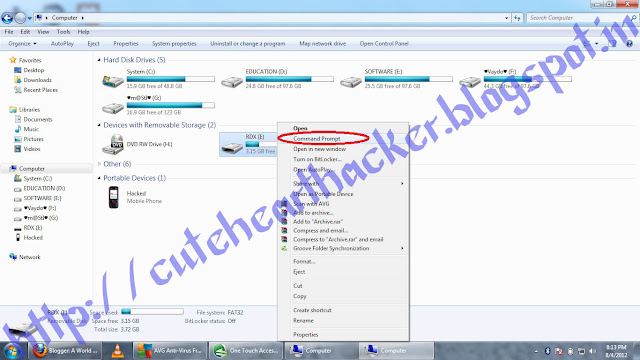
when we use command prompt that time we go in directory using "cd" and "cd.." commands but i have one easy way to access directory. just imagine if any Operating System provide Command prompt menu is it possible noooo???? but i say Yupssss Why Not friends..??

Now we can add command prompt in right click of any directory folder or drive by this tutorial post

How to add Command Prompt in right click

  • Start > Run
  • Enter "regedit" and hit Enter
  • Expand to "HKEY_LOCAL_MACHINE\SOFTWARE\Classes\Folder\shell"
  • Right-click on "shell" and select New > Key
  • Make sure a new key is created under "shell". Change the name of this key to "Command Prompt"
  • Right-click on this new key "Command Prompt" and select New > Key
  • Change the name of this key to "command"

Yuppieee It's Done!!!!!!!!!

For Video tutorial Find us on YouTube
https://www.youtube.com/user/thehackerofheart


How to enter in Windows Xp without Password ??

2 comments

T
here is a way to log 0n to your Windows XP system if ever you've forgotten all your users account passwords and don't have any administrator account to enter the system.

    The truth is you don't need to install expensive 3rd party software or don't even need to be an expert to enter your locked XP system. What you just need is your Windows XP installer disc and your locked system to have an optical drive (of course). This is very handy if you forgot your administrator password and don't have any access to other account with administrator rights or if you're friend have also forgot his password.

    Here's what you'll do if ever you forgot all your User Account'spassword and you thought (including Microsoft) that you can no longer enter your System.

How to enter in Windows Xp without Password

  • Put the Windows XP installer disc into the optical drive (CD/DVD) and restart your PC.

  • Press any key when prompted with "Press any key to boot from CD", then wait for the "Welcome to setup" screen to appear, just press enter.

  • Then press F8 to agree on the license agreement.

  • On the next screen, you will be prompted to repair or install a fresh copy of Windows XP. You just need to select the locked Windows XP installation you want to enter (If you've more than one Windows XP installed) and press "R".

  • The system will then reboot after setup checked the disk and copied setup files (Just wait for the system to reboot). And when it reboots, don't press any key when prompted to "Press any key to boot from CD".

  • The setup will be automatically start the setup process. This is the most important steps, you need to wait for the setup to install the devices. Press the combination of SHIFT+F10 when you see the words "Installing Devices" at the bottom of the shown remaining minutes of the setup to finish.

  • After that, a command console will be open, where in you need to type "NUSRMGR.CPL" (Without the quotes).

  • You will be then given access to the User Account window similar to the control panel where you will delete or edit your forgotten password. Choose remove if you need to enter the system without entering password or edit if you want to change your forgotten password.

  • After you delete or edit your account password, close the command windows and let the setup to finish. (You will also be needing to enter the XP product key if prompted)

  • When setup is finished, system will reboot and you'll be automatically enter your system if you choose to delete the password or need to enter your new password if you just edit your forgotten password.

  • That's all! You now have entered your locked Windows XP system.

How to install Ubuntu 10.10

0 comments
T
he Ubuntu 10.10 is almost here and all those who are new to Ubuntu would like to know how to install Ubuntu 10.10 on their PC. This issue shall be handled here.

“I use Ubuntu because I need a system that is easy to set up and maintain for the family, that allows them to do what they need and want easily, quickly and without a lot of input.”
-Drew Kwashnak

how to install Ubuntu 10.10


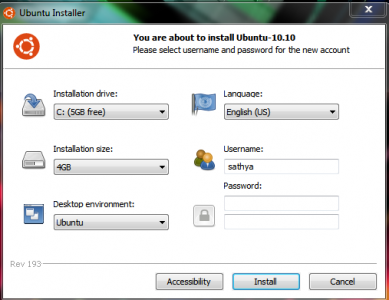
          Ubuntu provides an exceptional option to install it as an application inside windows. All you need to do is download the iso file, mount it and run the wubi.exe. You will be prompted to select how much dsk space you would like to allocate for Ubuntu and in which drive. Enter the username and password and it will prompt you to restart. On restarting it will complete the installation process. You can also remove Ubuntu from the add or remove software option in windows.

  •  Installing in a separate partition
          If you want to install Ubuntu in a separate partition, you need to boot from an Ubuntu Live CD or USB. To create a bootable USB in windows you an mount the iso and run the usb-creator.exe. If you already have Ubuntu you can use the Startup Disk Creator program in System>Administration. In other distributions you can use unnetbootin software to create bootable USB drive.


          You need to have an empty partition. To partition NTFS (Windows drives) you can use partition magic. Linux Ext 3/4 drives can be partitioned using Disk Utility software.

          Insert the CD or USB drive and reboot the computer. To boot from USB you have to enter BIOS boot selection using the special key ( different for different companies. For eg F12 for Lenovo ) and choose to boot from USB. Choose “Install Ubuntu” when the option screen turns up. Fill in the details which are quite straight forward except for choosing the partition.

          Select “Manually Specify” in the partition selection menu and then a list of available partitions turn up. Right click on the one in which to install and set filesystem type to ext4 and mount point to “/” . Check the “Format” option and then proceed.


 The Installation will complete in around 10 minutes. Enjoy using the Ubuntu 10.10 !!!

How to Hide EXE file into JPG

0 comments
T
his is a good trick to hide your exe files into a jpg file..!


 How about sending a trojan or a keylogger into your victim using this trick..??

  • Firstly, create a new folder and make sure that the options 'show hidden files and folders' is checked and ‘hide extensions for known file types’ is unchecked.Basically what you need is to see hidden files and see the extension of all your files on your pc.
  • Paste a copy of your server on the new created folder. let's say it's called 'server.exe' (that's why you need the extension of files showing, cause you need to see it to change it)
  • Now you’re going to rename this 'server.exe' to whatever you want, let’s say for example 'picture.jpeg'
  • Windows is going to warn you if you really want to change this extension from exe to jpeg, click YES.
  • Now create a shortcut of this 'picture.jpeg' in the same folder.
  • Now that you have a shortcut, rename it to whatever you want, for example, 'me.jpeg'.
  • Go to properties (on file me.jpeg) and now you need to do some changes there.
  • First of all delete all the text on field 'Start In' and leave it empty.
  • Then on field 'Target' you need to write the path to open the other file (the server renamed 'picture.jpeg') so you have to write this :-'C:\WINDOWS\system32\cmd.exe /c picture.jpeg'
  • The last field, 'c picture.jpeg' is always the name of the first file. If you called the first file 'soccer.avi' you gotta write 'C:\WINDOWS\system32\cmd.exe /c soccer.avi'.
  • So what you’re doing is when someone clicks on 'me.jpeg', a cmd will execute the other file 'picture.jpeg' and the server will run.
  • On that file 'me.jpeg' (shortcut), go to properties and you have an option to change the icon. Click that and a new window will pop up and you have to write this :-%SystemRoot%\system32\SHELL32.dll . Then press OK.
  • You can set the properties 'Hidden' for the first file 'picture.jpeg' if you think it’s better to get a connection from someone.
  • But don’t forget one thing, these 2 files must always be together in the same folder and to get connected to someone they must click on the shortcut created not on the first file. So rename the files to whatever you want considering the person and the knowledge they have on this matter.
  • For me for example I always want the shortcut showing first so can be the first file to be opened. So I rename the server to 'picture2.jpeg' and the shortcut to 'picture1.jpeg'.This way the shortcut will show up first. If you set hidden properties to the server 'picture.jpeg' then you don’t have to bother with this detail but I’m warning you, the hidden file will always show up inside of a Zip or a Rar file.
  • So the best way to send these files together to someone is compress them into Zip or Rar.
  • inside the Rar or Zip file you can see the files properties and even after all this work you can see that the shortcut is recognized like a shortcut but hopefully the person you sent this too doesn’t know that and is going to open it.

Best 10 Ways, To Create a Bootable USB flash Drive

2 comments
S
o, ever wanted to make a bootable USB Drive with your favorite Windows, Linux, or whatever bootable ISO disk?

Well, here is a large list of some software that can create a USB for you. That USB can contain a windows installation disk, a Linux CD ( could be a live version as well ), Ultimate boot CD, Antivirus Rescue CD, Recovery software live CD, Disk partitioning software and a lot more.


Create Windows Bootable USB
1. WinToFlash:

As you can see from the above screenshot, it’s the easiest software you can use to create a bootable windows. It can create a bootable version of windows xp/2003 , winPE XP/2003 , Windows vista/2008/7/8 setup to USB drive, and some more…. .


2. Windows 7 USB/DVD Download tool :

Windows 7 USB/DVD download tool is created by Microsoft itself to make it easier to create a bootable USB drive or burn windows 7 Iso file to a DVD.

3. A Bootable USB :
A Bootable USB is a little app made to let you install windows vista/2008/7  from a USB drive.

4. A Bootable USB by Askvg.com :

Seems to have the same name as the above one.But it’s got a few more options and it works for x64 versions of windows as well.

5. Setup From USB :

A simple and easy to use app to make a bootable windows vista/7 USB drive. Required .NetFramework 4.

Blue Screen of Death On Windows

4 comments
T
oday i am surffing internet and I have got a solution for the blue screen of death and from now you may never see the blue screen of death on your computer or laptop.

Get Rid Of Blue Screen Of Death On Windows


AntiCrash is a program that can intercept and fix up to 95.8% blue screens, crashes,  freezes and errors. When a crash occurs, AntiCrash fixes it automatically; we have nothing to do!

New! AntiCrash now also includes AutoRepair – A unique technology. With AutoRepair, you can scan & repair all computer problems with a single click. AutoRepair automatically determines what is going wrong on your computer with an advanced Artificial Intelligence system, and fixes it instantly.

AntiCrash will protect your computer like no other software. Not only AntiCrash protects you against 95.8% crashes, but it also automatically fixes the crashes. AntiCrash does all the work for you! AntiCrash is also the only software capable of intercepting blue screens and freezes.

To Download the software

Morzilla Firefox - 15 hottest tricks ever

0 comments
E
verybody’s favorite open-source browser, Firefox, is great right out of the box. And by adding some of the awesome extensions available out there, the browser just gets better and better.

But look under the hood, and there are a bunch of hidden (and some not-so-secret) tips and tricks available that will crank Firefox up and pimp your browser. Make it faster, cooler, more efficient. Get to be a Jedi master with the following cool Firefox tricks.

  • More screen space. Make your icons small. Go to View – Toolbars – Customize and check the “Use small icons” box.

  • Smart keywords. If there’s a search you use a lot (let’s say IMDB.com’s people search), this is an awesome tool that not many people use. Right-click on the search box, select “Add a Keyword for this search”, give the keyword a name and an easy-to-type and easy-to-remember shortcut name (let’s say “actor”) and save it. Now, when you want to do an actor search, go to Firefox’s address bar, type “actor” and the name of the actor and press return. Instant search! You can do this with any search box.
  • Keyboard shortcuts. This is where you become a real Jedi. It just takes a little while to learn these, but once you do, your browsing will be super fast. Here are some of the most common (and my personal favs):
* Spacebar (page down)
* Shift-Spacebar (page up)
* Ctrl+F (find)
* Alt-N (find next)
* Ctrl+D (bookmark page)
* Ctrl+T (new tab)
* Ctrl+K (go to search box)
* Ctrl+L (go to address bar)
* Ctrl+= (increase text size)
* Ctrl+- (decrease text size)
* Ctrl-W (close tab)
* F5 (reload)
* Alt-Home (go to home page)

  • Auto-complete. This is another keyboard shortcut, but it’s not commonly known and very useful. Go to the address bar (Control-L) and type the name of the site without the “www” or the “.com”. Let’s say “google”. Then press Control-Enter, and it will automatically fill in the “www” and the “.com” and take you there – like magic! For .net addresses, press Shift-Enter, and for .org addresses, press Control-Shift-Enter.

  • Tab navigation. Instead of using the mouse to select different tabs that you have open, use the keyboard. Here are the shortcuts:
* Ctrl+Tab (rotate forward among tabs)
* Ctrl+Shft+Tab (rotate to the previous tab)
* Ctrl+1-9 (choose a number to jump to a specific tab)

  • Mouse shortcuts. Sometimes you’re already using your mouse and it’s easier to use a mouse shortcut than to go back to the keyboard. Master these cool ones:
* Middle click on link (opens in new tab)
* Shift-scroll down (previous page)
* Shift-scroll up (next page)
* Ctrl-scroll up (decrease text size)
* Ctrl-scroll down (increase text size)
* Middle click on a tab (closes tab)

  • Delete items from address bar history. Firefox’s ability to automatically show previous URLs you’ve visited, as you type, in the address bar’s drop-down history menu is very cool. But sometimes you just don’t want those URLs to show up (I won’t ask why). Go to the address bar (Ctrl-L), start typing an address, and the drop-down menu will appear with the URLs of pages you’ve visited with those letters in them. Use the down-arrow to go down to an address you want to delete, and press the Delete key to make it disappear.

  • User chrome. If you really want to trick out your Firefox, you’ll want to create a UserChrome.css file and customize your browser. It’s a bit complicated to get into here, but check out this tutorial.

  • Create a user.js file. Another way to customize Firefox, creating a user.js file can really speed up your browsing. You’ll need to create a text file named user.js in your profile folder (see this to find out where the profile folder is) and see this example user.js file that you can modify. Created by techlifeweb.com, this example explains some of the things you can do in its comments.

  • about:config. The true power user’s tool, about.config isn’t something to mess with if you don’t know what a setting does. You can get to the main configuration screen by putting about:config in the browser’s address bar. See Mozillazine’s about:config tips and screenshots.

  •  Add a keyword for a bookmark. Go to your bookmarks much faster by giving them keywords. Right-click the bookmark and then select Properties. Put a short keyword in the keyword field, save it, and now you can type that keyword in the address bar and it will go to that bookmark.

  • Speed up Firefox. If you have a broadband connection (and most of us do), you can use pipelining to speed up your page loads. This allows Firefox to load multiple things on a page at once, instead of one at a time (by default, it’s optimized for dialup connections). Here’s how:
* Type “about:config” into the address bar and hit return. Type “network.http” in the filter field, and change the following settings (double-click on them to change them):
* Set “network.http.pipelining” to “true”
* Set “network.http.proxy.pipelining” to “true”
* Set “network.http.pipelining.maxrequests” to a number like 30. This will allow it to make 30 requests at once.
* Also, right-click anywhere and select New-> Integer. Name it “nglayout.initialpaint.delay” and set its value to “0″. This value is the amount of time the browser waits before it acts on information it receives.

  • Limit RAM usage. If Firefox takes up too much memory on your computer, you can limit the amount of RAM it is allowed to us. Again, go to about:config, filter “browser.cache” and select “browser.cache.disk.capacity”. It’s set to 50000, but you can lower it, depending on how much memory you have. Try 15000 if you have between 512MB and 1GB ram.

  • Reduce RAM usage further for when Firefox is minimized. This setting will move Firefox to your hard drive when you minimize it, taking up much less memory. And there is no noticeable difference in speed when you restore Firefox, so it’s definitely worth a go. Again, go to about:config, right-click anywhere and select New-> Boolean. Name it “config.trim_on_minimize” and set it to TRUE. You have to restart Firefox for these settings to take effect.

  •  Move or remove the close tab button. Do you accidentally click on the close button of Firefox’s tabs? You can move them or remove them, again through about:config. Edit the preference for “browser.tabs.closeButtons”. Here are the meanings of each value:
* 0: Display a close button on the active tab only
* 1:(Default) Display close buttons on all tabs
* 2:Don’t display any close buttons
* 3:Display a single close button at the end of the tab bar (Firefox 1.x behavior)
 

Google+ Followers

Total Pageviews

FeedBurner

Mayur Sojitra - Find me on Bloggers.com
Follow on Bloglovin
© 2012 A World Of Possibilities . Designed by Nitin Maheta, Powered by Blogger